
Journal working process
This guide shows how a manuscript moves through the Journal of Business Administration (JBA) website — from author registration to editorial decision. Use the screenshots and numbered steps below.
Download PDF — four workflow updates (with screenshots) Workshop manuals (author2, editor2, reviewer2, plagiarism2)
Site: https://journal.iba-du.edu | Help: journal@iba-du.edu
Overview Authors Editors Plagiarism checkers Reviewers Status meanings
1. How a paper moves
Four roles take part. Authors create their own accounts. Editors create accounts for plagiarism checkers and reviewers.
| Role | Who creates the account | After login, go to |
|---|---|---|
| Author | Self-register on the website | Submit A Paper, then Profile (My Submission) |
| Editor | Another editor (Users / Create user) | Dashboard → All submissions |
| Plagiarism checker | Editor | Dashboard (plagiarism workspace) |
| Reviewer | Editor | Dashboard (My assignments) |
2. Authors
2.1 Register
- Open the site and click Register (top right).
- Fill First name, Affiliation, and Country (required). Last name is optional.
- Enter Email, Username, Password, and Repeat password.
- Tick the privacy consent box, then click Register.
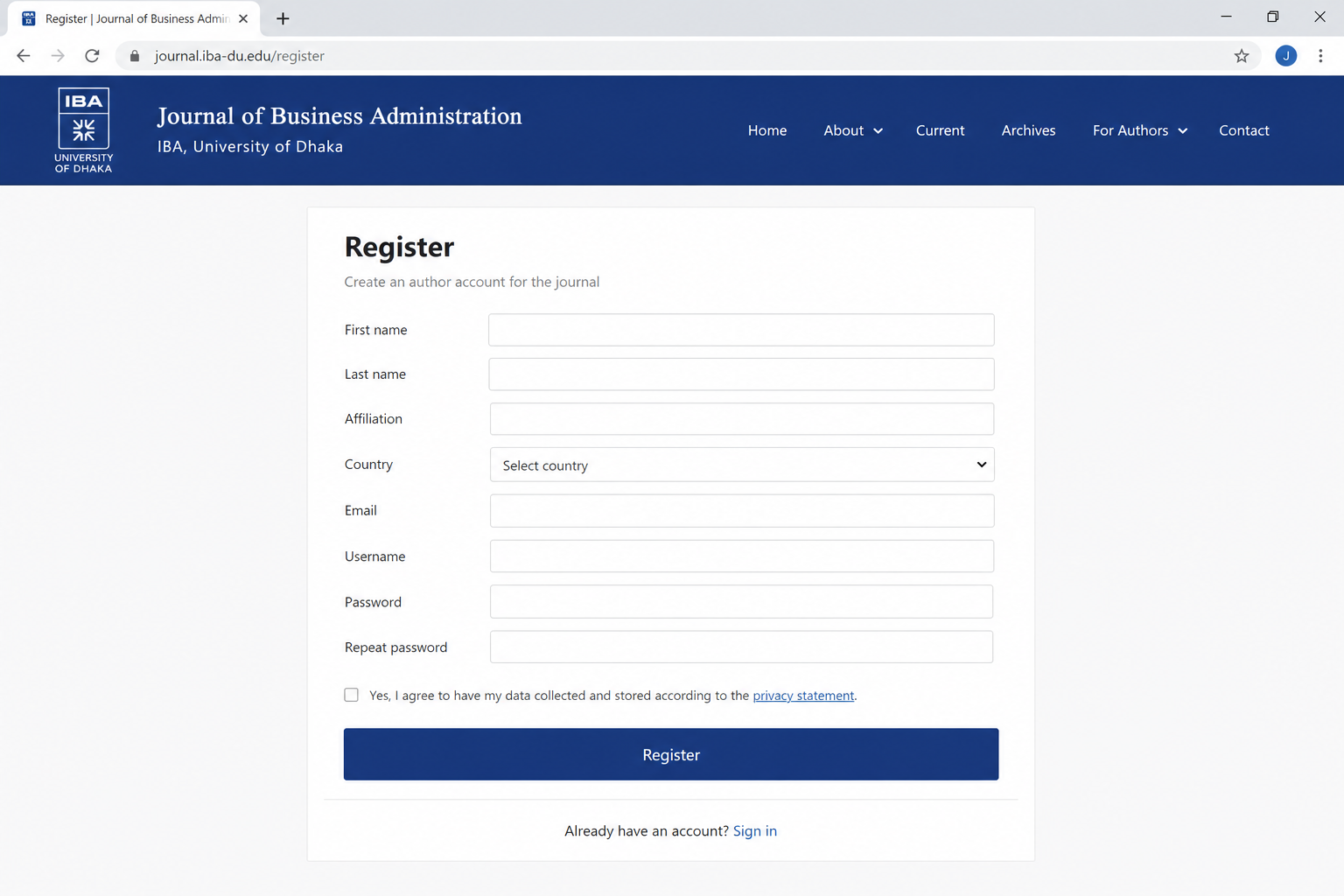
Register
5 Agree to the privacy statement
Register2.2 Login
- Click Login (top right).
- Enter your Email address and Password.
- Optional: tick Remember me.
- Click Login. Authors are taken to the submission guidelines / new paper area.
- Use Forgot password? if you cannot sign in.
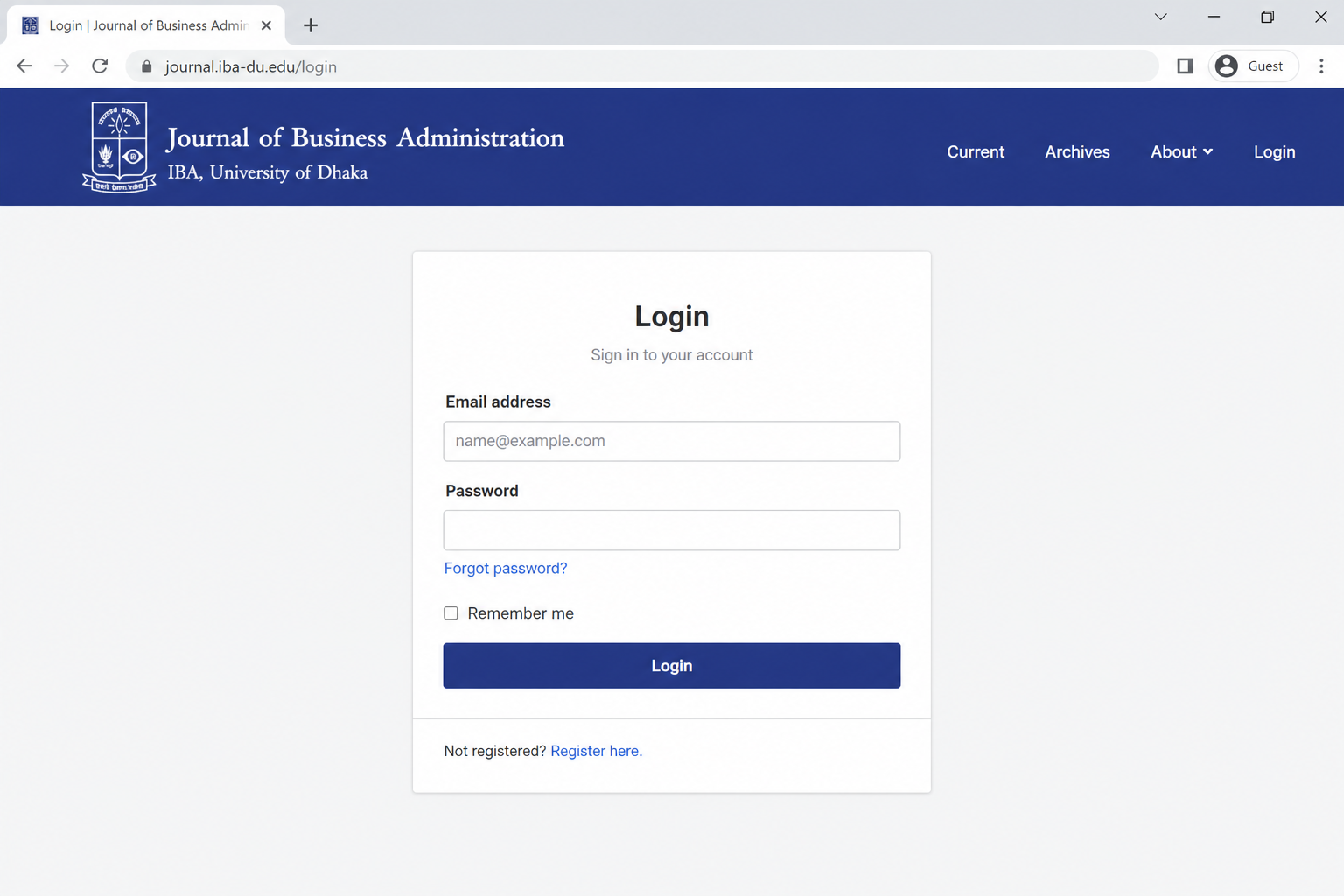
2.3 Submit a paper
Menu: Submit A Paper → read the Author Guidelines → Click Here To Submit A Paper (you must be logged in). Direct page: /paper-submission.
- Enter Paper Title, Abstract, Keywords, Research Area, and JEL Code.
- Upload the manuscript as Word (.doc / .docx) and again as PDF. Use a single-column layout.
- Optional: write a Message to the Editor/Reviewer.
- Fill Authors' Details (salutation, full name, designation, organization, email, mobile). Click Add Another Author for co-authors.
- Fill Address for Communication (country is required).
- Click the submit button. You are redirected to Profile with a success message.
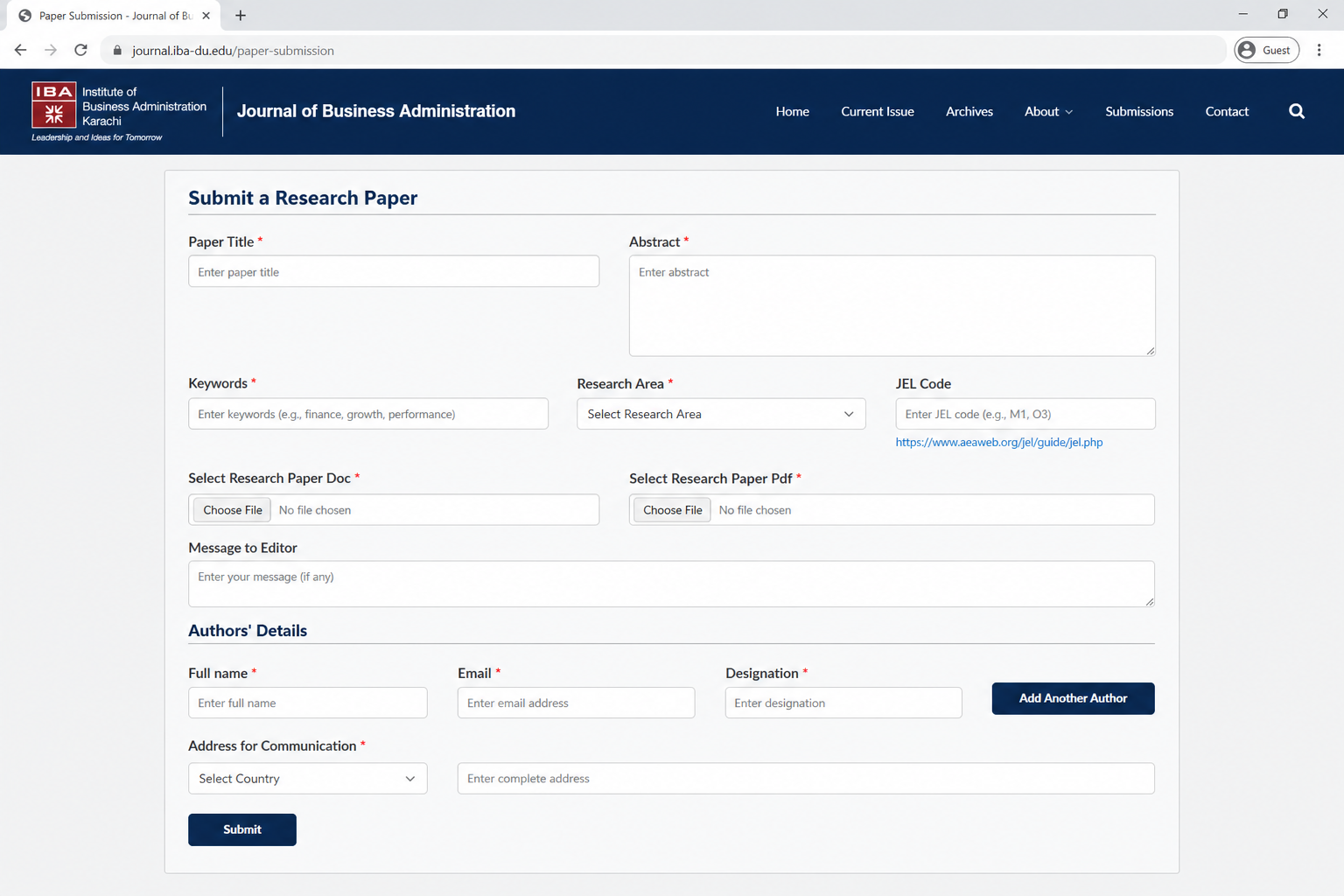
Submit a Research Paper
5 Authors' Details — then Address for Communication
Submit2.4 Track your submission
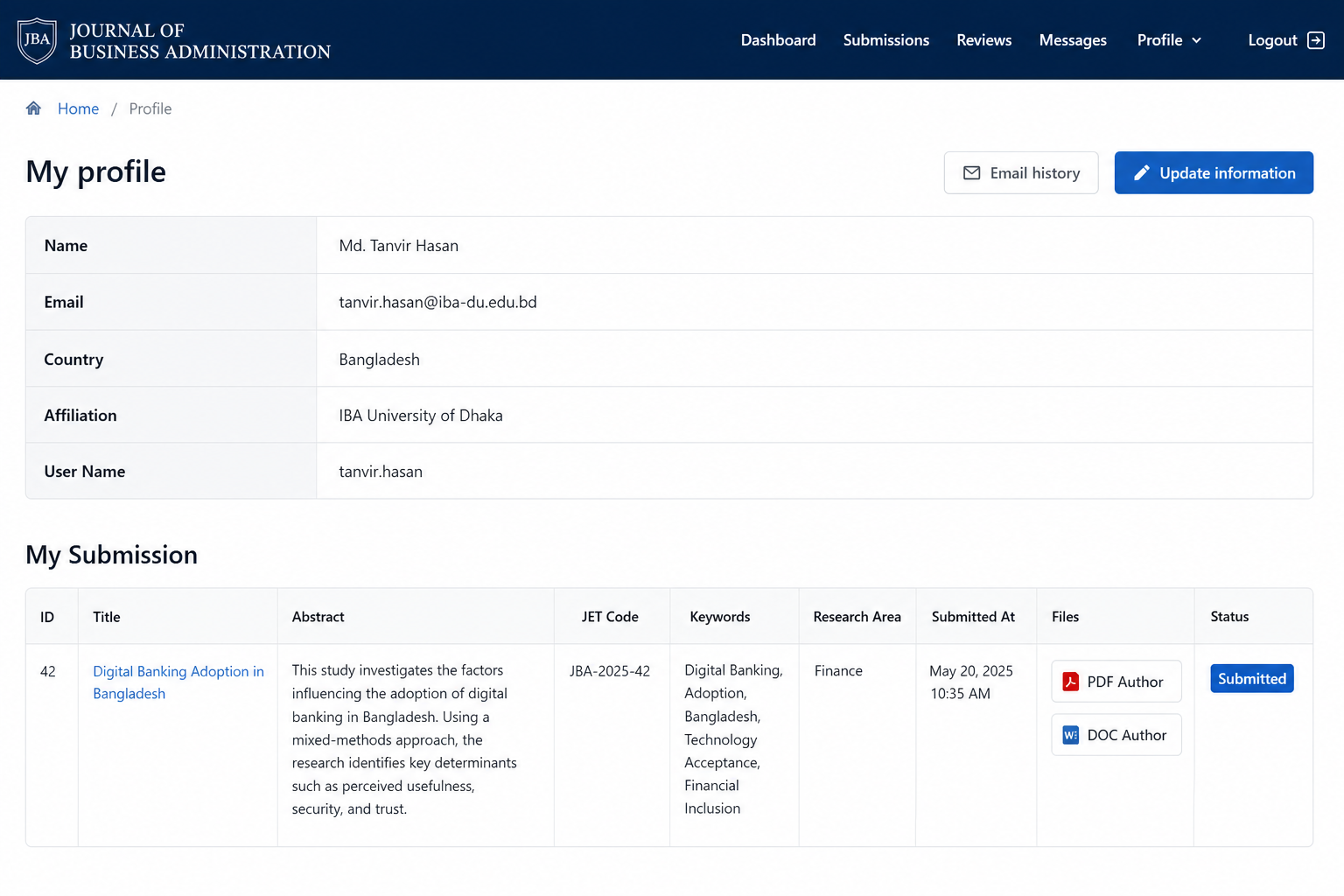
- Open Profile (top menu after login).
- Under My Submission, find the paper ID, title, files, and status badge.
- Status starts as Submitted, then may become Assigned, Under Review, Accepted, or Rejected.
- When the editor approves a review, you see Reviewer 1, Reviewer 2, Reviewer 3 with full comments and any file the reviewer uploaded (not their name). Confidential notes to the editor stay hidden.
- Editor comments (posted for you and the reviewers) appear on the same page.
- After you can see those reviews, upload a revised manuscript as version 2, 3, 4… (Word + PDF) in the Files column.
3. Editors
After login, open Dashboard (All submissions) or Profile → All submissions (papers).
- Search by title, author, email, keywords, JEL/IET code, research area, status, or ID.
- Open Read more for abstract, plagiarism result, and review rounds.
- Download author files: PDF (author) / File (author).
- Optional: upload editor copies (PDF and DOC) and click Upload.
- Set Workflow status:
- Submitted — newly received
- Assign for plagiarism — sends the paper to the plagiarism checker queue
- Under review — peer review (also set automatically when you send to a reviewer)
- Accept / Reject — final decision (author is emailed when applicable)
- After a clean plagiarism result, choose a reviewer and click Send (emails login link). A 14-day sign-in link is emailed and shown on screen so you can copy it. Use Send login link again later if needed.
- When a review form is complete, click Approve Reviewer 1/2/3 for author. Only then can the author see that reviewer’s comments and uploaded file.
- Post an editor comment (visible to the author and assigned reviewers).
- Record Reviewer payment date if needed.
- Manage accounts under Users (create Author, Editor, Reviewer, or Plagiarism Checker).
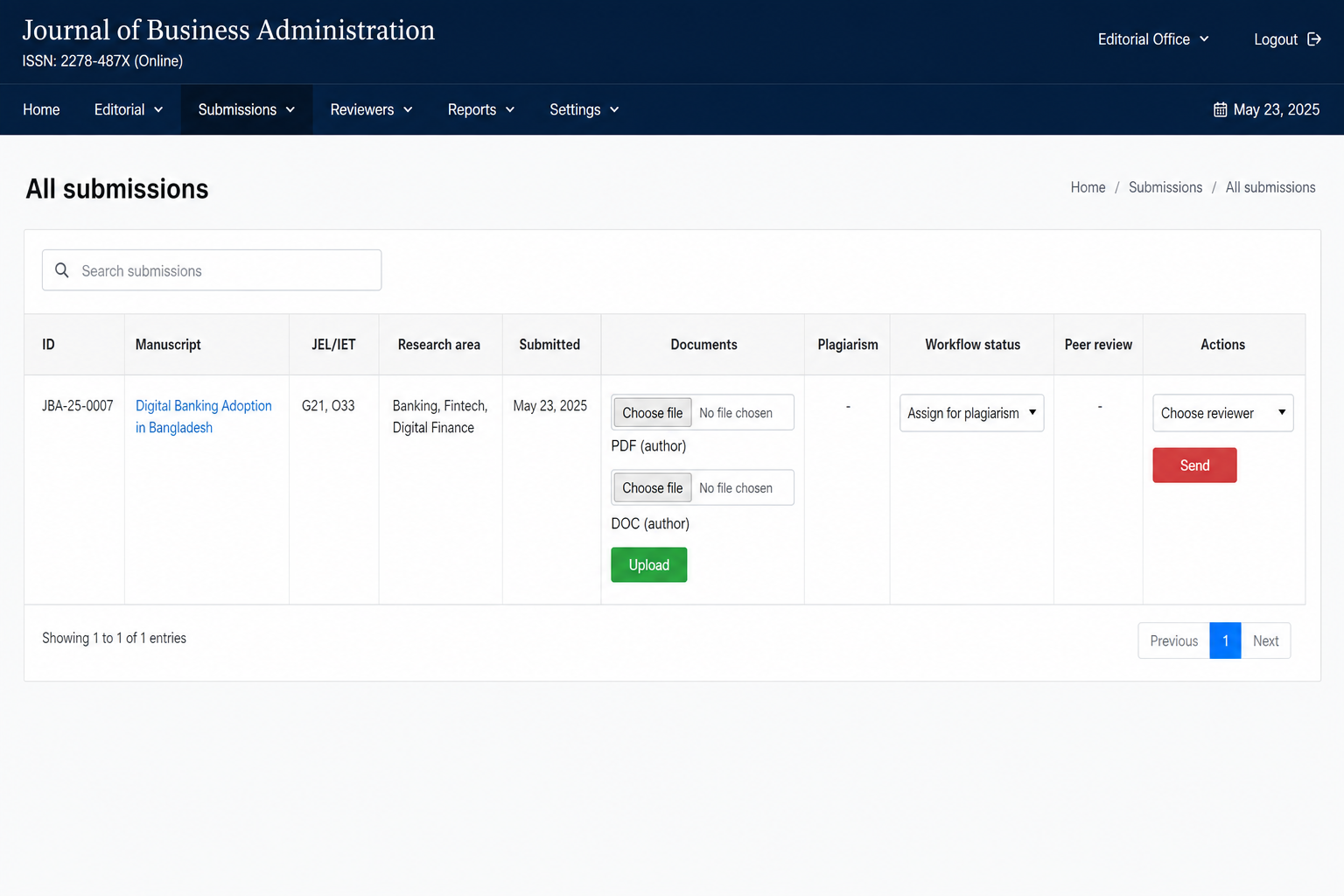
All submissions — actions on a row
4 After the review is submitted: Approve Reviewer 1/2/3 for author
5 Post an editor comment (author and reviewers can see it)
4. Plagiarism checkers
After login you land on Dashboard (/plagiarism-dashboard). Only papers with status Assign for plagiarism and no result yet appear under pending.
- Open Pending plagiarism checks.
- Open Editor PDF / Editor DOC and run your similarity check offline. Author files are not shown.
- Choose a result: Plagiarism is above 25% or Plagiarism is below 25%.
- Optional: enter a comment. Upload the full plagiarism report as PDF or image (JPG, PNG, GIF, or WebP).
- Click Submit Result. You can add or replace the report later under Already submitted plagiarism results.
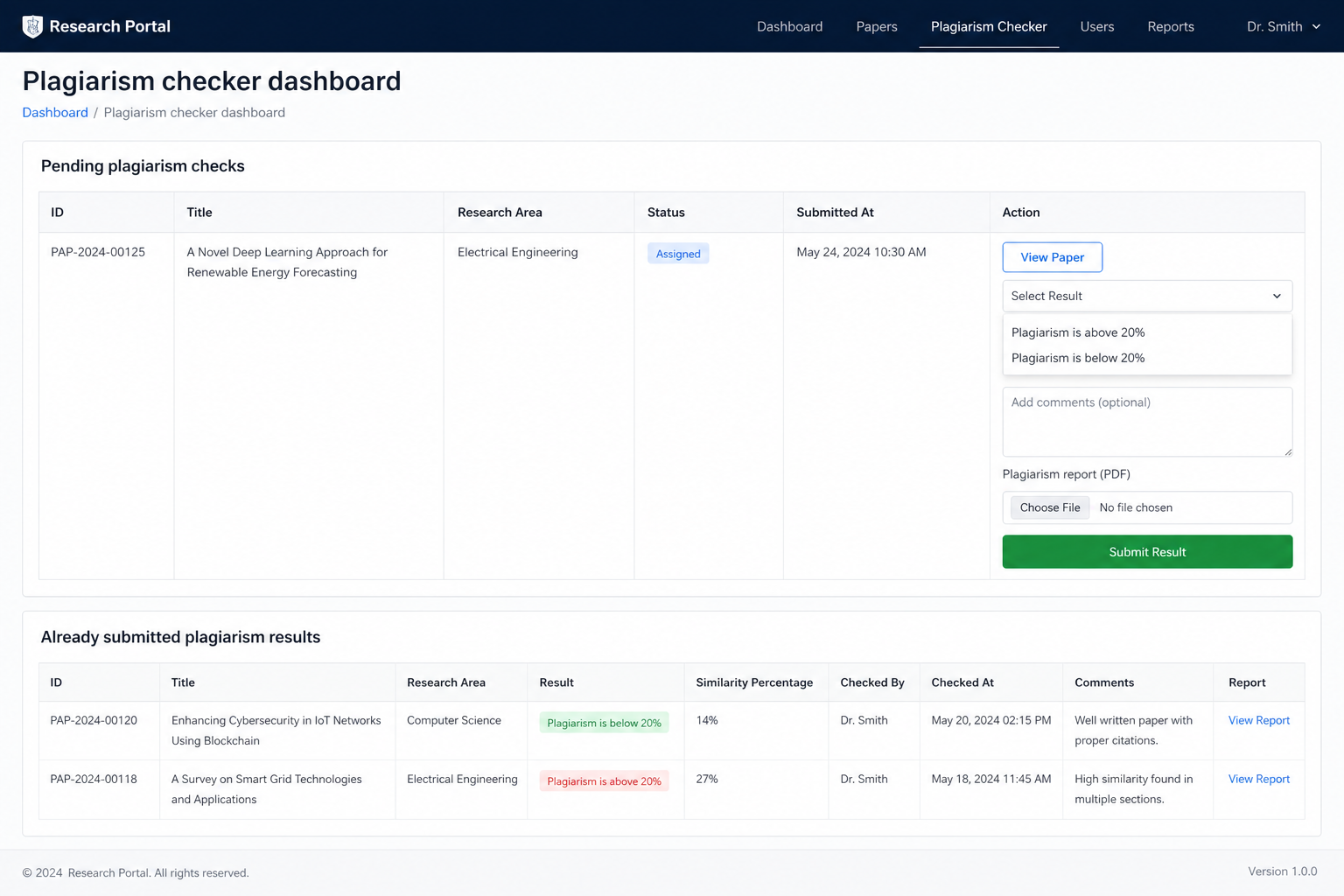
Pending plagiarism checks
1 Editor PDF / Editor DOC
5. Reviewers
After login, open Dashboard (/reviewer/papers). Only papers assigned to you and still under review appear when action is needed.
- Under Action required, open Editor PDF / Editor DOC. Author files are not shown to reviewers.
- Click Read more for abstract and details.
- If the editor sends the same paper again (round 2+), you do not accept again. Submit review form is already open for that round.
- For a first invitation, respond:
- I will review this paper — accept this round
- I cannot review this paper — decline
- After accepting, click Submit review form. Complete comments (required) and the criteria fields (originality, analytical rigour, clarity, research applications, internationality). Confidential comments go only to the editor.
- Choose a recommendation:
- Paper is fully OK
- Paper maybe accepted, after changes
- Paper has major changes
- Paper cannot be accepted at all
- Optional: attach an annotated manuscript (PDF or Word), then submit. Finished work appears under Completed.
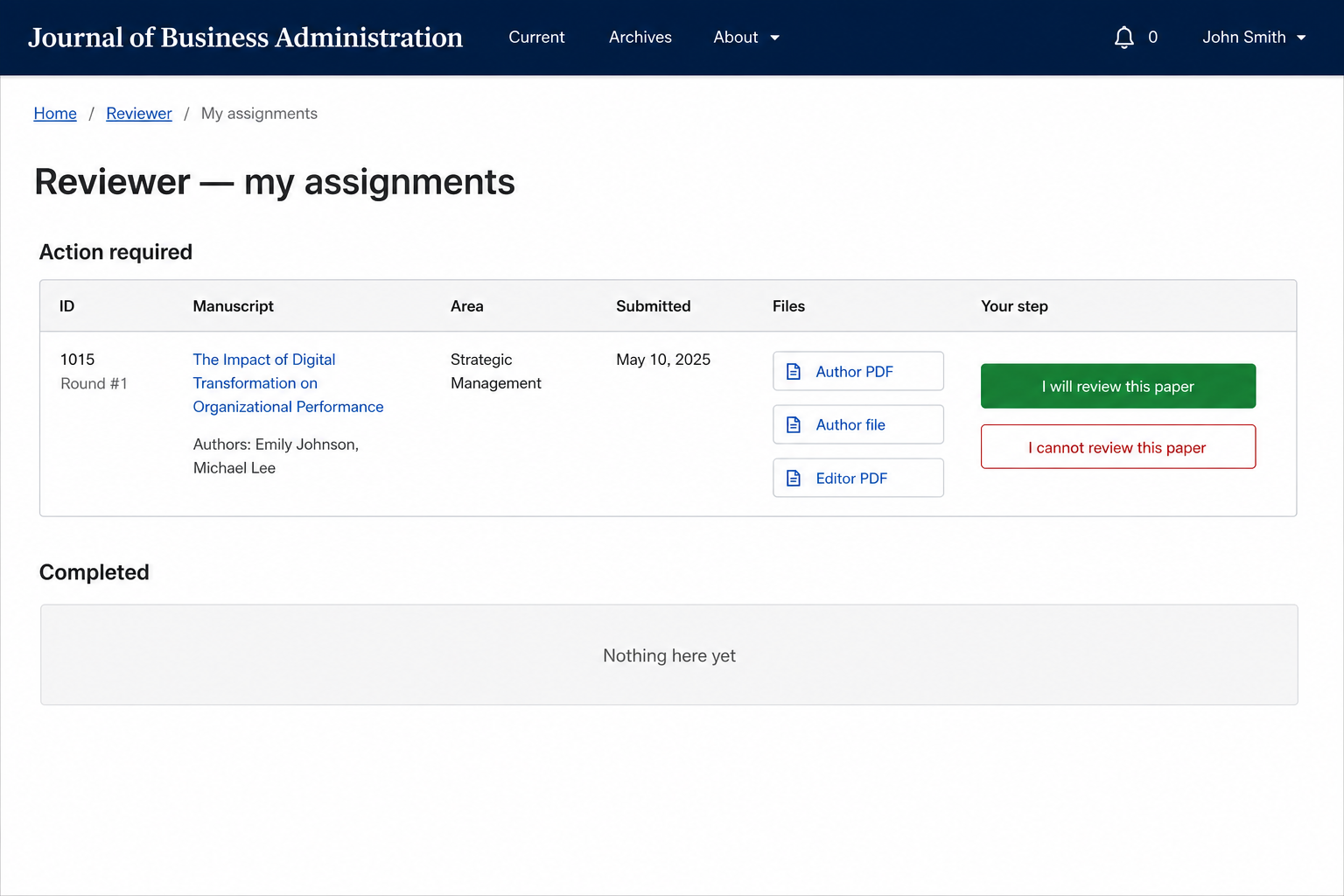
Reviewer — my assignments
1 Editor PDF / Editor DOC
2 I will review this paper I cannot review this paper
3 Submit review form (after you accept)
6. Status meanings
| Workflow status | What it means | Who acts next |
|---|---|---|
| Submitted | Author has uploaded the paper. | Editor |
| Assign for plagiarism (assigned_to_editor) | Paper is in the plagiarism checker queue. | Plagiarism checker |
| Under review | A reviewer has been invited or is reviewing. | Reviewer, then editor |
| Accepted | Editor has accepted the manuscript. | Editorial production |
| Rejected | Editor has rejected the manuscript. | — |
For manuscript style rules, see Author Guidelines. To start a submission, go to Submit A Paper.
